Site Sweep: How to Check Every Page of Your Website for Risky Green Claims
Every compliance review of a website starts with the same quiet assumption: that the pages you looked at are the pages that matter. For the home page, the sustainability page and the ten best-selling products, that is probably true. For the other 900 product pages, the 200 blog posts and the footer that repeats the same sentence on every one of them, nobody looked, because nobody could. From 27 September 2026, when Directive (EU) 2024/825 applies, a claim on page 812 is judged by exactly the same rule as a claim on the home page.
That is the gap Site Sweep closes. It is a new tool in EcoClaim, alongside the scans you already know, and it does one thing: it reads the text of every page you point it at, up to a thousand in one go, and tells you every risky environmental claim it found, grouped by wording, so that one fix in a shared template counts as one fix and not as 276 findings. This article explains what it is, who it is for, how to run one and how to read what comes back.
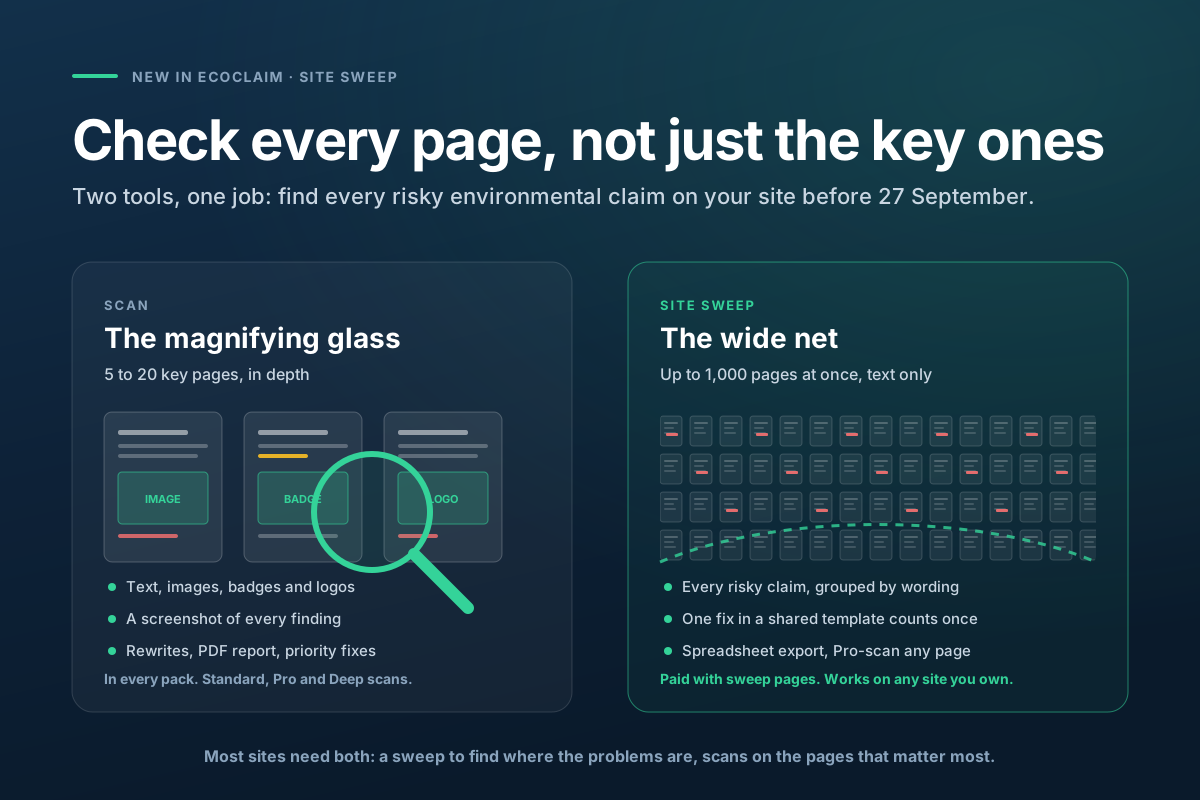
Scan or sweep: the magnifying glass and the wide net
A scan is the magnifying glass. It takes five to twenty key pages and examines each in depth: the text, the images, the badges and logos, with a screenshot of every finding, a rewrite for every flagged sentence and a PDF report. That depth is what makes a scan useful on the pages a customer or a regulator will actually open, and it is why every EcoClaim pack is built around scans.
A Site Sweep is the wide net. It reads text only, no screenshots, no image analysis, but it reads hundreds of pages at once and it thinks in claims rather than in pages. Where a scan tells you "this page has four findings", a sweep tells you "this wording appears on 276 pages, and it is the same footer every time". The two are not competing products. Most sites need both: the sweep to find where the problems are across the whole site, and scans on the pages that matter most.
It does not check images, badges or logos. About seven in ten of the sustainability-label findings in our scan corpus sit in an image and nowhere in the copy, so a sweep alone will not find your self-designed eco badge. That is what a Pro or Deep scan is for, and every page in a sweep report has a button that starts one.
Who a Site Sweep is for
- Shops with hundreds of product pages. The claims that matter most usually live in the product template, the category description and the footer, which means one sentence written years ago appears on every page you sell from. A sweep finds it once and shows you how far it reaches.
- Companies with a site per country. The same group often runs seven or eight national domains, translated at different times by different agencies. A sweep of each one, run from the same dashboard, is the only realistic way to know whether the German site still says "klimaneutral" while the Dutch one was fixed in spring.
- Agencies and consultants auditing a client's site. The report exports as a spreadsheet, groups findings the way a fix list needs to be written, and re-running the sweep after the changes gives a dated before-and-after for the client file.
- Anyone who has to show they checked. After 27 September the question is not whether a site is perfect. It is whether you can show what you checked, when, and what you did about it. A sweep is that record, for the whole site, with a date on it.
How to run a sweep, step by step
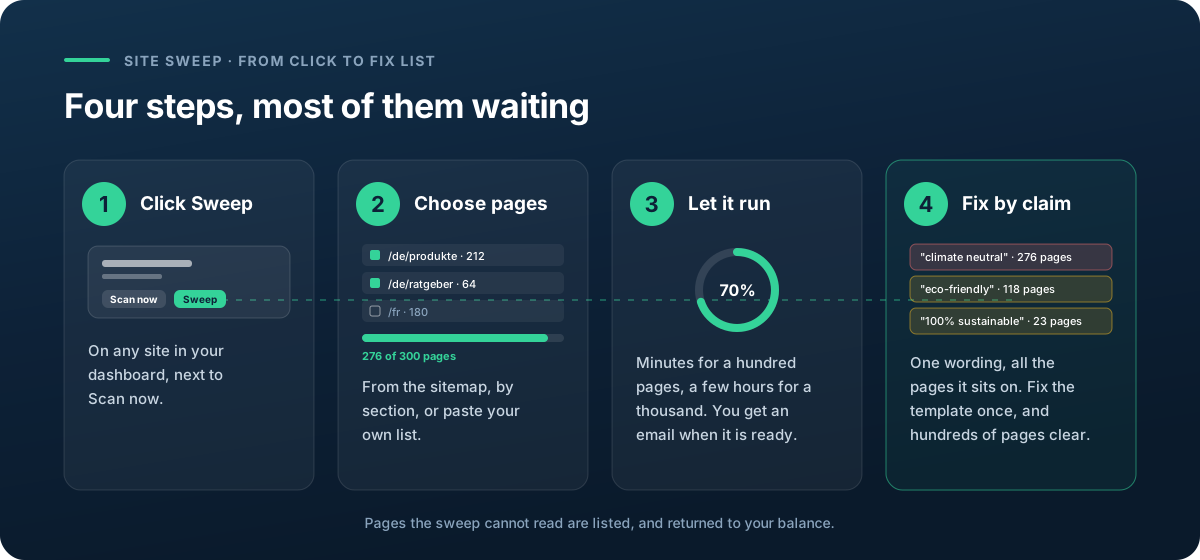
1. Open your site and click Sweep
Every site in your dashboard has a Sweep button next to Scan now. It opens the sweep screen for that site, which lists any sweep you ran before and lets you start a new one. Sweep pages are not tied to a site: the same balance works on any site you own, so a group with eight domains needs one balance, not eight.
2. Choose which pages it reads
This is the step that decides whether the sweep is useful, and there are three ways to do it. The first, and the one most people use, is the map: the sweep reads your site's own sitemap, groups the pages by language and section, and pre-ticks a sensible selection spread across them. "Our German product pages" is two clicks. The second is a section: give it a starting address such as your shop's /de/ folder, and it maps only what sits underneath. The third is your own list: paste addresses, or upload an export from Excel, Screaming Frog, Search Console or your CMS, and the sweep pulls the page addresses out, checks that they belong to the site and removes duplicates.
Whichever way you choose, a meter shows how many pages you have selected against how many sweep pages you hold, and the sweep never reads more than that. If your list is longer than your balance, it says so and offers to keep the first N, rather than trimming quietly. Nothing costs anything until you press Start.
Do not try to read the whole site on the first run. Take the sections that sell: product pages and category pages in your main market. Those are where the template claims live, and a 300-page sweep of them usually surfaces the same three or four wordings that a 1,000-page sweep would, at a third of the pages. Sweep the rest after those are fixed.
3. Let it run
A sweep runs in the background. A hundred pages take minutes; a thousand can take a few hours, because every page is read against the same rules of the directive that a scan applies. You do not need to keep the tab open. A small tray on your site page shows the progress, and when the sweep finishes you get an email with the headline numbers and a link to the report.
Some pages cannot be read: they block automated visitors, they time out, or they turn out to be a redirect to a page that was already read. The sweep lists every one of them in the report, with the reason, and returns them to your balance. A sweep never charges you for a page it did not read.
4. Read the report, by claim
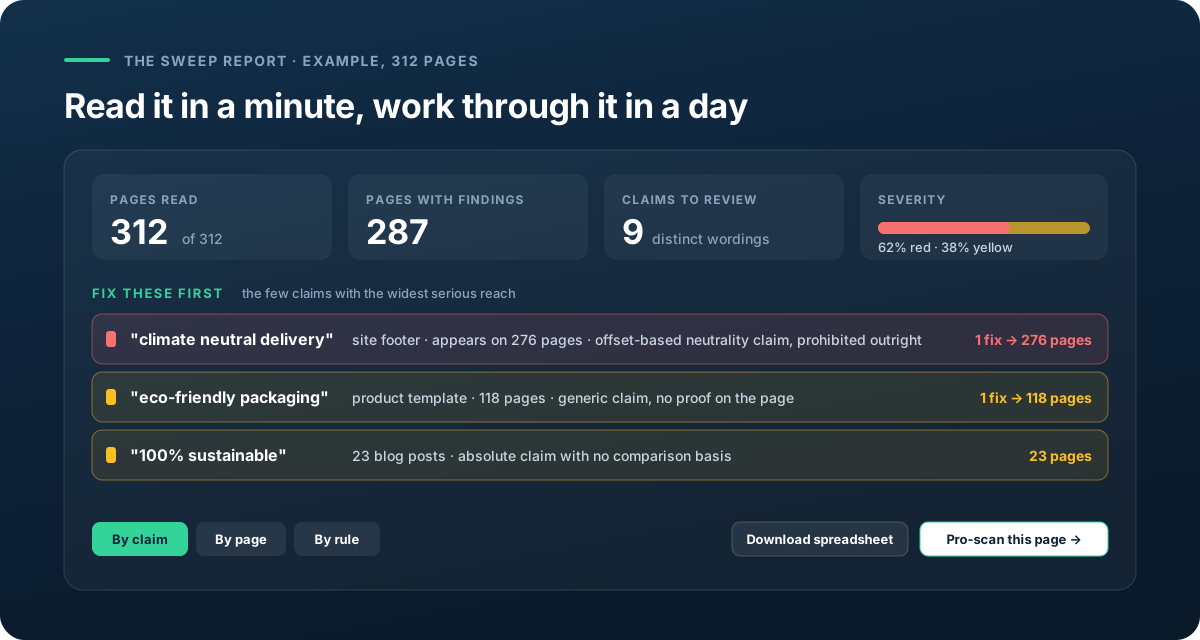
The report is built to be read in a minute and worked through in a day. The top gives you the picture: how many pages were read, how many carry a finding, how many distinct claims that comes down to, and the split between red findings, which are prohibited outright, and yellow ones, which need proof or rewording. In the example above, 287 pages with findings collapse into nine wordings. That number, not the 287, is the size of your job.
Below that is Fix these first: the few claims with the widest serious reach, ranked by how many pages a single fix would clear. A footer that says "climate neutral delivery" on 276 pages is one line of copy in one template, and it is the first thing to change, because offset-based neutrality claims are on the directive's blacklist and it is on every page you have. Then come three views of the same findings. By claim is the default and the fix list: one wording, every page it sits on, the rule it breaks. By page is for the person who has to open pages, worst first. By rule is for the lawyer who thinks in Annex I points. Filters for severity and a search across wording and page address work in all three.
Two buttons finish the job. Download spreadsheet gives you every finding as a row, for the agency, the client file or your own tracking. Pro-scan this page starts an ordinary Pro scan of that one page, with the images, the badges, the screenshots and the rewrites, using a Pro credit from your pack. That is the intended loop: the sweep finds where the problems are, the scan does the close work on the pages that matter.
How sweep pages work
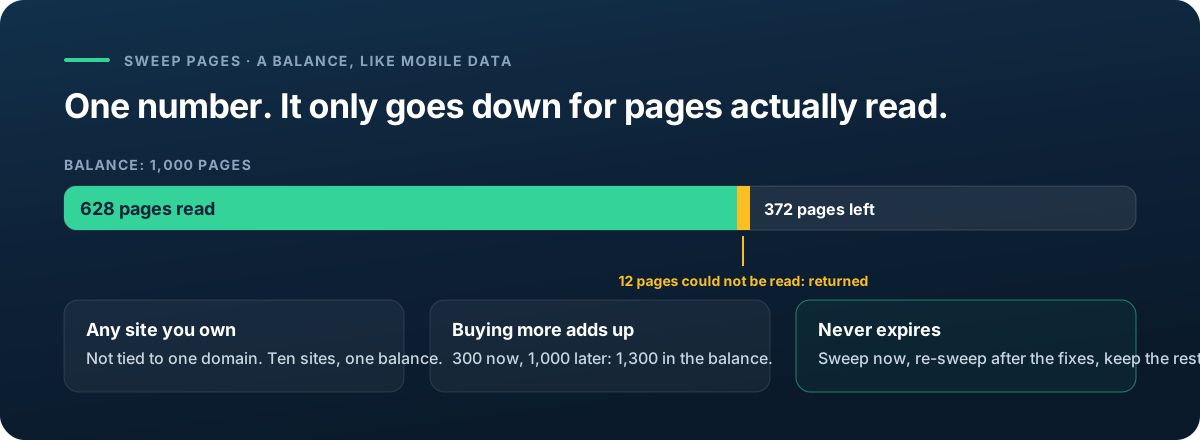
Sweep pages are a balance, like mobile data. Each sweep uses one page for every page it reads, and you choose how many to read. Pages the sweep cannot read go straight back. Buying more adds to what you have, the balance works on any site in your dashboard, and it never expires: sweep now, fix, re-sweep after the fixes for the dated record, and keep the rest for the next site.
There are two ways to get them. Pro + Site Sweep (€219.99) is the Pro pack with 300 sweep pages; Complete + Site Sweep (€429.99) is the Complete pack with 1,000. Both are the pack exactly as it is, with the sweep pages on top, and both cost less than buying the two separately. If you already have a pack, or run out, top-ups of 300 or 1,000 pages sit on the pricing page and in your dashboard. Sweep pages on their own unlock the sweep and its report, nothing else: rewrites, PDF reports and the certificate vault come with the packs, which is why the bundles are the sensible starting point for most sites.
A sweep checks text only, across many pages at once. A scan examines every page in depth, text, images, badges and logos, with a screenshot of every finding. The per-page price reflects that. It does not mean a sweep is a cheaper scan: it is a different tool, and the depth you give up is exactly the depth an image-heavy finding needs.
A week's plan for a large site
- Day 1: sweep the sections that sell. Product and category pages in your main market, from the map. Start it and go back to work.
- Day 2: fix by claim, top down. Open Fix these first. Each entry is one wording; most are one template. Change the template, not the pages. Use the banned words list for the wordings that cannot be rescued and the rewrite patterns from a Pro scan for the ones that can.
- Day 3: Pro-scan the pages that carry images. Product pages with badges, the sustainability page, anything with a seal or a leaf. The sweep cannot see those; a Pro scan can, and it gives you the rewrite and the screenshot for each.
- Day 4: sweep the rest. Blog, guides, secondary markets. Fewer template claims, more one-off sentences; the by-page view is the right one here.
- Day 5: re-sweep, and keep the report. The second sweep is your dated record of what the site said after the fixes. Download the spreadsheet and file it with the first one. That pair is what you show if anyone ever asks what you checked.
See the Site Sweep plans
Pro + Site Sweep and Complete + Site Sweep are the two packs you already know, with 300 or 1,000 sweep pages on top. Top-ups for existing customers are on the same page. If you have never run a check at all, start with the free scan: it needs no account.
Site Sweep on the pricing pageFAQ
What is a Site Sweep?
A Site Sweep reads the text of hundreds of pages of your site in one go and lists every risky environmental claim, grouped by claim, so the fixes that cover the most pages come first. It does not check images, badges or logos; Pro and Deep scans do that, with a screenshot of every finding.
What are sweep pages and how are they used?
Sweep pages are a balance, like mobile data. Each sweep uses one page for every page it reads, and you choose how many to read. Pages we cannot read go straight back to your balance, buying more adds to what you have, and they never expire. They are not tied to one site: use them on any site in your dashboard.
Sweep or scan: which do I need?
Use the sweep to find where the problems are across the whole site, and Pro or Deep scans on the pages that matter most. If your site has fewer than about fifty pages, a Complete pack's scans will usually cover it without a sweep. Above that, start with a sweep.
What if a sweep cannot read some pages or stops early?
Every page that could not be read is returned to your balance automatically, and the report lists which pages they were and why. A sweep never costs you pages it did not read.
How long does a sweep take?
Minutes for a hundred pages, a few hours for a thousand. It runs in the background; you get an email with the headline numbers and a link to the report when it finishes.
Can I sweep a site I do not own, for a client?
Yes. Add the client's site to your dashboard as you would for a scan, and sweep it from there. The same balance works across every site you have added, and the spreadsheet export is built for the client file.
Free account
Keep your compliance work in one place
Scans you run while signed out disappear when you close the tab.
- Save every scan and come back to it later
- See whether your score improves after you fix things
- Store certificates against the claims they prove